

If you’re a Windows user, you have a set of built‑in photo and video editing apps that are ready to use when you are. Microsoft Photos, Clipchamp, Paint, and Snipping Tool cover the most common editing tasks, such as cleaning up photos, cutting videos, capturing screens, and sharing results. Each app is designed for specific tasks. Together, these tools form a practical editing stack that fits into creative workflows.
Each app has a clear role and, when used together, supports most everyday photo, video, and visual content tasks on Windows 11. Start here:
- The Photos app handles everyday photo edits, organization, and quick enhancements.
- Clipchamp supports video editing, captions, and clean exports.
- Paint works best for creating simple graphics, illustrations, and other visual elements.
- Snipping Tool captures screens, adds annotations, and prepares visuals for sharing.
Best built‑in Windows 11 photo editor: The Photos app
The Photos app is the primary photo editor on Windows 11 and serves as a central photo library.
- Enhance the composition of a photo by cropping it
- Adjust mood and correct color inaccuracies by adjusting color and light
- Stylize and transform photos into visually striking, creative visuals by applying filters
- Remove imperfections and distracting elements with basic retouching
The Photos app brings together images and videos from your PC, OneDrive,1 and iCloud Photos, making it easy to review, organize, and share content across devices.
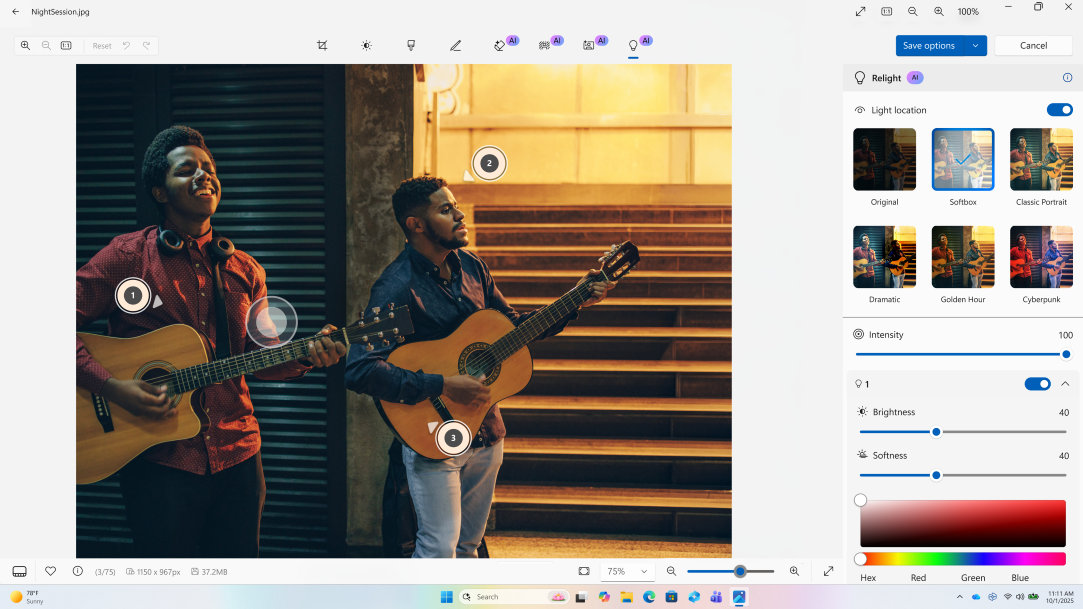
AI‑powered tools help speed up common photo adjustments. Relight helps users change the lighting in a photo, making it easier to fine‑tune portraits or draw focus to a subject. Super resolution helps users upscale older or low‑quality photos, which can be especially useful for improving images captured on earlier mobile devices.
The Photos app works well for batch workflows. Import a set of images, review quickly, apply consistent adjustments, and export clean files. Edits are non‑destructive, so you can revisit decisions without starting over.
Learning keyboard and mouse shortcuts can make the Photos app feel significantly faster, especially when working through larger sets.
The Photos app is designed for fast, practical edits. For complex compositing or advanced color grading, specialized tools may be a better fit. For everyday photo work, use the Photos app to keep your workflow moving.
